EAA Website Accessibility Scan: What It Checks and What to Do Next
· 9 min read

An eaa website accessibility scan checks a website for common accessibility barriers and helps you decide what to review or fix next. It is a useful starting point for EAA preparation, but it cannot by itself confirm that your service is legally compliant or fully accessible.
Key takeaways
- The European Accessibility Act (EAA) applies to specified products and services, not automatically to every website.
- Automated scans can flag detectable issues, such as missing image descriptions or form-label problems, but they cannot judge every user experience.
- Use scan results as a prioritized worklist, then manually test important pages and interactive journeys.
- The EAA has applied since 28 June 2025; check the rules and guidance that apply in the countries where you operate.
- KlearKomply offers a free Quick Scan for up to 10 pages and a €29 one-time Full Readiness Scan for up to 50 pages.
What an EAA website accessibility scan does—and what it cannot do
An EAA website accessibility scan reviews selected pages for technical patterns that may create barriers for people with disabilities. Depending on the tool, it may look for issues such as missing alternative text, weak colour contrast, form fields without clear labels, or headings used in a confusing order. The result is a list of findings to investigate, not a legal verdict.
The EAA sets accessibility requirements for certain products and services. It is an EU directive implemented by Member States, so national rules and enforcement arrangements matter. The European Commission says the Act applies from 28 June 2025. Its scope includes specified services such as e-commerce; it does not make every website subject to the same obligations by default. See the European Commission’s EAA overview and the Council of the EU’s explanation of the rules.
Whether the EAA applies to your business depends on what you provide, who you serve, and the applicable national implementation. The Council describes an exemption for micro-enterprises providing services: fewer than 10 employees and annual turnover below €2 million. Do not rely on a scanner to determine whether you qualify for an exemption. Confirm your situation using relevant national guidance or qualified advice.
A scan can help answer, “What visible issues should we investigate?” It cannot reliably answer, “Does the EAA apply to my business?” or “Is my whole service accessible?” Those require context and human judgement.
What an EAA website accessibility scan may check
Automated tools typically examine page code and rendered content for issues that can be detected against technical rules. The exact checks vary between tools, and a result may be a warning that needs human review rather than a confirmed failure.
| Area | Example of a scan finding | What a person should check |
|---|---|---|
| Images | An image may not have alternative text | Does the text convey the image’s purpose, or should the image be ignored by assistive technology? |
| Colour | Text may have insufficient contrast | Is the text readable in its actual size, weight, background, and state? |
| Forms | A field may lack a programmatic label | Can users identify the field, understand errors, and complete the form using a keyboard or screen reader? |
| Structure | Heading levels may be out of sequence | Does the page’s structure make sense when read and navigated without visual layout? |
| Links and controls | A link or button may have an unclear name | Does its accessible name describe the action or destination in context? |
| Keyboard access | A control may be difficult to reach or operate | Can users complete the full interaction, see where focus is, and avoid keyboard traps? |
A scan may also find repeated patterns across several pages. For example, a site-wide navigation menu or cookie banner can affect many journeys if it is difficult to operate by keyboard. But identifying a possible code issue is not the same as testing the complete interaction with real assistive technology.
Check the tool’s coverage before interpreting its report. Does it scan one URL or multiple pages? Can it reach pages behind a login? Does it interact with menus, filters, checkout steps, or forms? A page-only scan may not exercise those features, even if they are central to your service.
How to run an EAA website accessibility scan and use the results
A scan is most useful when it is part of a short, repeatable process. Prepare a representative set of pages, record findings, and verify fixes rather than treating a score as the finish line.
1. Check whether the EAA may apply
Write down what your business sells or provides online, where customers are located, and whether the site is part of a covered service such as e-commerce. Consider whether a micro-enterprise exemption may be relevant, but verify the conditions for your business and country. A website scan cannot make this scope assessment for you.
2. Choose pages that represent real journeys
Include more than the homepage. Select pages such as product or service details, contact and registration forms, account areas, and key steps in checkout or booking. If your site has different templates, include at least one example of each important type. For a large site, start with high-traffic or business-critical journeys and expand coverage over time.
3. Run the scan and preserve the findings
Save the report, including the page URL, issue description, and any evidence the tool provides. Note whether a finding is confirmed, needs manual review, or appears repeatedly. Avoid relying on a single overall score: a small number of serious barriers can matter more to a user than many minor warnings.
KlearKomply’s free Quick Scan checks up to 10 pages, which can help a small business get an initial view of its site. If you need broader coverage, the €29 one-time Full Readiness Scan covers up to 50 pages. Page coverage is not the same as a complete audit of every user journey, so review the scan’s findings and limits before planning work.
4. Turn findings into fix briefs
Give each issue a clear handoff: the affected URL or component, what the tool detected, how a user may be affected, and a suggested next step. For example:
Finding: The “Send request” button has no clear accessible name on the contact page.
User impact to verify: Someone using a screen reader may not know what the control does.
Suggested action: Add a concise name that describes the action, then test the button with keyboard navigation and a screen reader.
Treat suggested fixes as starting points. The right change depends on the component and context. After implementation, retest the affected page and check that the change has not introduced a new problem.
5. Manually test important tasks
Try to complete essential tasks using only a keyboard. Check that focus is visible and moves in a logical order. Review pages at different zoom levels, listen to content with a screen reader, and test error messages and confirmation states. If you can, involve people with disabilities in testing; their experience can reveal barriers a checklist does not capture.
6. Record what you did and plan the next review
Keep a straightforward record of the pages checked, issues found, fixes made, and items still awaiting review. Re-scan after significant design or content changes. If you provide a covered service, the Directive includes requirements for service providers to provide information about how the service meets applicable accessibility requirements. Review Annex V of the Directive and relevant national guidance when preparing that information.
Why automated scan results need human review
Automated testing can be efficient for repeatable checks, but some accessibility questions depend on meaning and context. A tool may report that an image has alternative text without knowing whether that text is useful. It may identify a button but not establish whether the surrounding instructions make the process understandable.
The W3C explains that tools can support evaluation, but knowledgeable human evaluation is needed to determine accessibility. It also cautions that some checks cannot be automated and that tools can produce inaccurate or misleading results. Read the W3C guidance on evaluating accessibility and its advice on selecting accessibility evaluation tools.
Use automated findings alongside manual checks, not instead of them. For more complex services—especially those with account access, payment steps, or dynamic content—consider a structured review by someone with accessibility expertise. A scan is still valuable: it can highlight patterns, help developers focus effort, and provide a starting point for that review.
Common mistakes when acting on a scan report
- Treating a score as a compliance certificate. A high score does not show that every page, feature, or user journey has been assessed. Read the individual findings and test important tasks.
- Assuming every website is in scope—or none are. The EAA covers specified products and services. Check your service type, business circumstances, and national requirements rather than guessing from the website alone.
- Scanning only the homepage. Important barriers may appear in forms, account pages, checkout, menus, or error states. Cover representative templates and key journeys.
- Fixing warnings without checking context. A scanner may flag content that is appropriate as built, or miss a barrier that is obvious to a user. Verify before changing code or content.
- Ignoring keyboard and assistive-technology use. A page can pass many automated checks and still be difficult to operate. Manually test navigation, focus, form completion, and feedback.
- Assuming a one-time scan keeps a site accessible. New content, plugins, and redesigns can introduce new issues. Repeat checks when important parts of the site change.
- Confusing accessibility with other readiness checks. Privacy and cookie consent, for example, are separate concerns. Reviewing them alongside accessibility can be useful, but success in one area does not establish compliance in another. See KlearKomply’s privacy policy for information about its own privacy practices.
Choose your next step: quick check, broader scan, or expert review
Start with the level of coverage that matches your immediate need. A small informational site may begin with a focused scan and manual checks of its main pages. A store or service with many templates and interactive steps should include more pages and a closer review of complete user journeys.
KlearKomply’s free Quick Scan is a practical first step for checking up to 10 pages. The €29 one-time Full Readiness Scan can extend that initial review to up to 50 pages. Use either report to identify issues and create a fix list—not as a promise of EAA compliance.
If you are unsure whether the Act applies, need to evaluate complex interactions, or must document accessibility information for a covered service, combine the scan with a human review and advice suited to your situation. A clear record of what you checked, what you fixed, and what remains to test will help you make steady progress.
An EAA website accessibility scan is a useful way to find potential barriers and decide what to do next. It works best as the start of an accessibility process: check scope, scan representative pages, fix and retest findings, and involve human review where automated checks cannot answer the question.
This video is hosted by YouTube. Loading it shares your IP address with Google and may set cookies.
Frequently asked questions
Does the EAA apply to every website?
No. The EAA covers specified products and services, rather than every website by default. E-commerce is one of the service areas addressed, but whether particular requirements apply depends on the service and relevant national rules. Micro-enterprises providing services may be exempt if they meet the applicable conditions, so check your circumstances rather than relying on a scan.
Can an automated scan tell me whether my website is EAA compliant?
No. An automated scan can flag detectable technical issues, but it cannot assess every page, user journey, or context. The W3C notes that some checks cannot be automated and that tools may give inaccurate or misleading results. Use scan findings as a starting point, then manually test important tasks and seek expert review when needed.
What does an EAA website accessibility scan usually check?
Depending on the tool, it may flag patterns such as missing image descriptions, low colour contrast, unclear form labels, heading-structure issues, or controls with ambiguous names. The exact coverage varies. A finding may need human review, and scans may not exercise interactive flows such as checkout, menus, or account functions.
Do I need a manual accessibility audit as well as a scan?
A scan and manual testing serve different purposes. Automated checks can quickly find some repeatable technical problems, while manual testing helps assess keyboard operation, focus, form feedback, meaning, and complete user journeys. The more complex or business-critical your service is, the more useful a structured human review is likely to be.
How many pages can I scan with KlearKomply?
KlearKomply offers a free Quick Scan for up to 10 pages. Its Full Readiness Scan costs €29 one time and covers up to 50 pages. These page limits describe scan coverage, not a guarantee that every feature or journey has been manually tested or that the website meets legal requirements.
This article is general information, not legal advice.
Keep reading
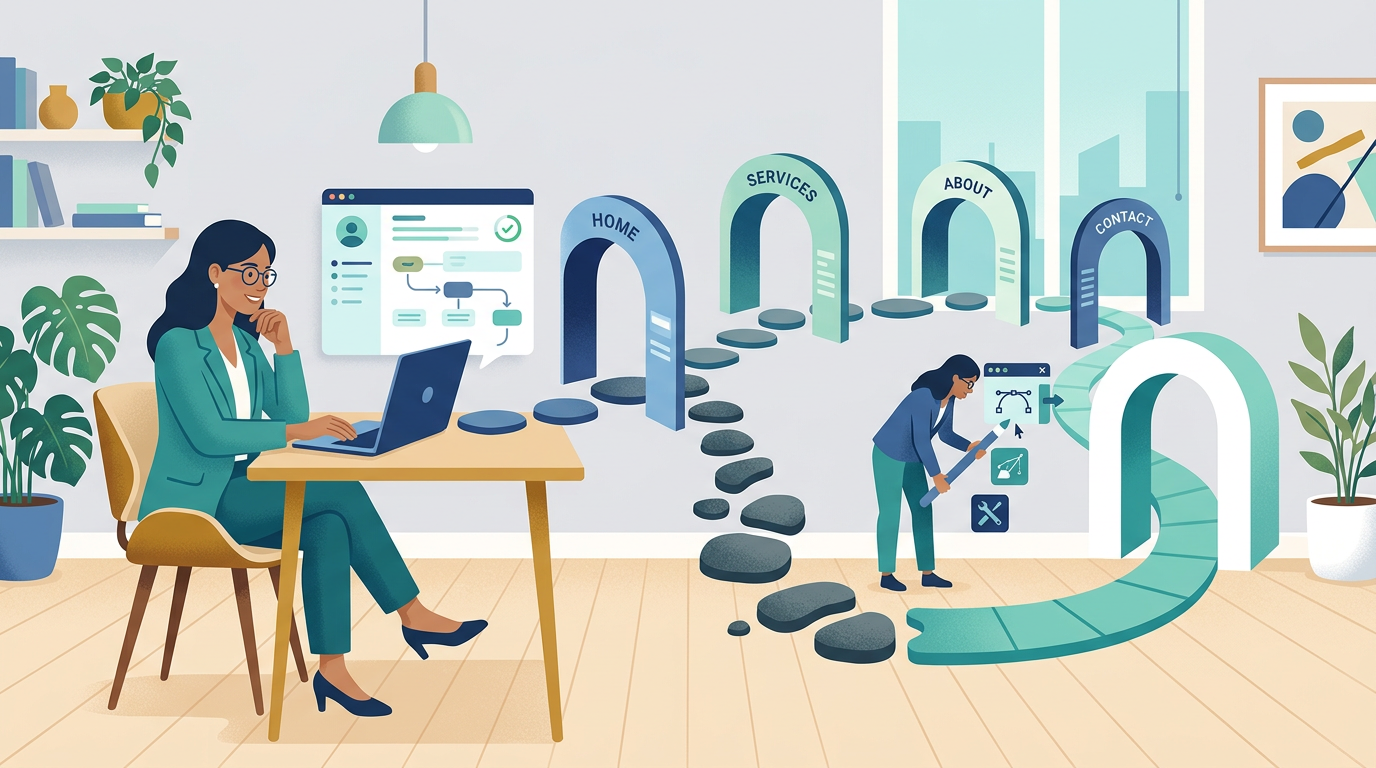
EAA Accessibility Checklist for a Small Business Website
Use this eaa accessibility checklist for a small business website to check scope, test key journeys, prioritise fixes and plan practical retesting.
Read article
Scan Website for GDPR Cookies and Trackers: A Practical Guide
Scan website for gdpr cookies and trackers, understand what loads before consent, and turn scan results into practical fixes for your site.
Read article