How to Choose a Website Compliance Checker for GDPR and Accessibility
· 8 min read
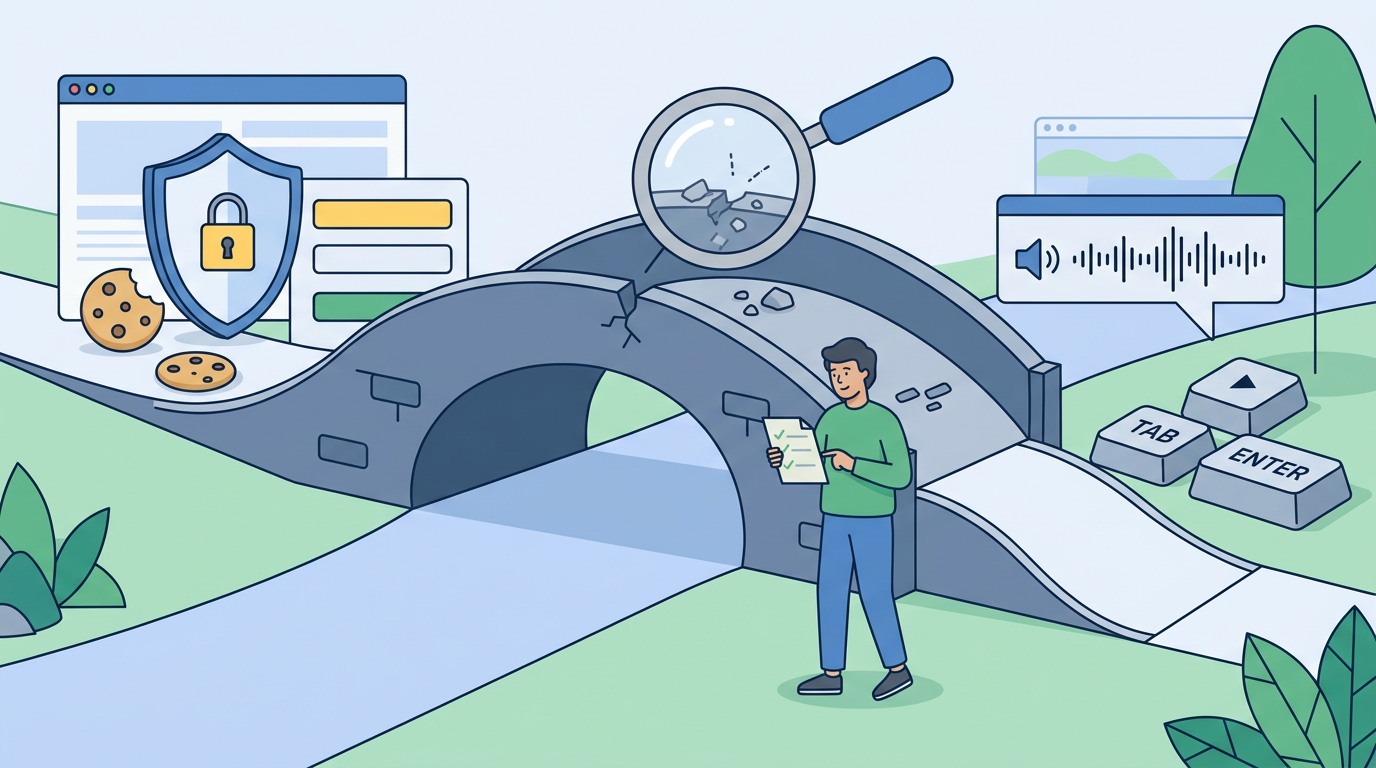
A website compliance checker for GDPR and accessibility can flag common privacy, cookie-consent and accessibility issues across the pages it scans. It is a practical starting point for fixes, not a legal verdict or proof that every part of your website complies.
Key takeaways
- Choose a checker that shows evidence and practical next steps, not just a score.
- Privacy checks should consider what cookies and trackers do before and after a visitor makes a choice.
- Accessibility scans can catch some common barriers, but people still need to test key tasks and assistive-technology use.
- EU rules do not apply identically to every business or website; check the relevant scope and any exemptions.
- Scan representative pages, fix the most important issues, and check again after changes.
What should a website compliance checker for GDPR and accessibility do?
A useful checker examines website pages for observable signals of privacy and accessibility problems, then explains what it found and what to do next. For privacy, that can include cookie-banner behaviour, trackers and privacy-policy links. For accessibility, it can identify issues such as missing image descriptions, form labels, heading structure, colour contrast and keyboard access.
The quality of the report matters as much as the number of checks. A useful finding identifies the affected page or element, describes the issue in plain language, explains why it matters and suggests a practical fix. A score without evidence can be difficult to act on: it may show change over time, but it does not tell a developer which form or banner to update.
No automated checker can assess every legal, design or user-experience question. A scan sees only the pages and states it tests. It may not know why a particular data flow exists, whether a consent choice is genuinely freely given, or whether a screen-reader user can complete a purchase. Treat its results as a prioritized review list, not a compliance certificate.
Why GDPR, cookie consent and accessibility checks belong together
Privacy and accessibility are separate areas of responsibility, but they meet in everyday website journeys. A cookie banner must communicate choices clearly; forms need to be usable and understandable; and a privacy notice should be easy for visitors to find and read. A site can have a polished privacy notice and still set a cookie too early, or offer a working consent banner that is difficult to use with a keyboard.
For cookies, the requirements depend on their purpose and the applicable rules. EU guidance gives behavioural-advertising and certain analytics or market-research cookies as examples of cookies that may require consent before they are set. It also says withdrawing consent should be as easy as giving it. Where GDPR consent is the legal basis, it must be freely given, informed, specific and unambiguous. Read the Your Europe guidance on online privacy and its GDPR overview.
Accessibility scope needs equally careful wording. The European Accessibility Act (EAA) applies to covered products and services, with scope and exemptions to consider; it is not accurate to assume that every EU website is covered in the same way. The Act has applied to covered products and services since 28 June 2025, and the EU summary includes e-commerce among covered services. The EU overview of the EAA explains its scope. The Council also describes an exemption for micro-enterprises providing services: fewer than 10 employees and annual turnover below €2 million. Check the Council’s accessibility overview and get advice on your particular situation where needed.
WCAG and EN 301 549 are important accessibility references, but an automated scan should not be presented as a complete assessment against them or as an EAA legal determination. Applicable requirements depend on the service and national implementation. The European Commission’s overview of the EAA explains that the Act covers selected products and services and that member states have a role in implementation.
How to choose a checker: compare scope, evidence and limits
Before entering a URL, check what the tool actually examines. “Website scan” can mean a single homepage or a crawl across several pages. Some checks require interaction with a banner or form, and some issues only appear after a visitor accepts or rejects cookies. Look for a clear page limit and a description of what is tested.
| What to compare | A useful checker should tell you | Why it matters |
|---|---|---|
| Page coverage | How many pages it scans and how it selects them | A homepage-only result may miss checkout, contact or account pages |
| Privacy checks | Whether it observes cookies or trackers and the consent states tested | A banner’s appearance does not prove that tracking waits for consent |
| Accessibility checks | Which automated checks run and what requires human review | Automated tools cannot judge every interaction or content choice |
| Finding details | Page, element or behaviour, severity and suggested action | Specific evidence helps teams reproduce and fix an issue |
| Limits | What the scan cannot verify | Prevents a score being mistaken for a legal conclusion |
| Price and scope | Free and paid page limits, price and report differences | You can choose a scan that fits the site without surprises |
For example, a report that says “missing form label” on a particular contact page gives a developer a clear place to investigate. “Accessibility score: 82” alone does not. Similarly, a cookie finding should explain the observed behaviour and test conditions, rather than simply label the whole site compliant or non-compliant.
A checker can be a helpful first pass, but accessibility needs human evaluation. W3C guidance says full accessibility conformance requires manual and/or semi-automated testing as well as automated evaluation. See the W3C accessibility evaluation guidance. That is why a good workflow pairs scan results with keyboard checks, assistive-technology testing and review of real user journeys.
A step-by-step workflow for scanning and fixing your website
1. Identify the pages and journeys that matter
Start with the pages visitors rely on to take action: home, product or service pages, contact forms, account creation, checkout and cookie or privacy settings. Include pages that use different templates or third-party tools. If your site is small, you may be able to cover its main pages quickly; for a larger site, choose representative pages first and note what remains untested.
2. Run the scan in a clean, documented state
Record the date, pages checked and any assumptions about the test, such as whether you used a fresh browser session. Cookie behaviour can change depending on whether a visitor has previously made a choice. If possible, test a new visit as well as the accepted and rejected consent states. Save the findings so you can compare them after fixes.
3. Sort findings by user impact and urgency
Prioritize issues that block a task or affect many visitors. A keyboard trap, a form that cannot be submitted without a mouse, or a tracker that appears to load before a required consent choice deserves careful attention. Then address repeated issues shared across templates, such as an inaccessible header or a misleading banner button. The scan’s severity labels are useful input, but use context: a small technical defect may matter more if it prevents a key task.
4. Confirm each issue before changing the site
Reproduce the finding on the named page. Check whether it is a true issue, whether it appears across other pages and whether the suggested fix fits the design and data use. For privacy findings, ask what the script collects and when it runs; a label alone cannot establish the correct legal basis. For accessibility, try the relevant task using a keyboard and, where practical, a screen reader. Keep a record of decisions and unresolved questions.
5. Fix, test and rescan
Make changes in the site’s templates, consent-management setup or content as appropriate. Then repeat the same test and confirm the change on the affected pages and states. Do not stop at a passing automated check: test the actual journey, such as rejecting non-essential cookies, finding the privacy notice, submitting a form or completing checkout. Recheck after significant updates to design, plugins, analytics or third-party services.
6. Give developers evidence they can use
A good handoff includes the URL, steps to reproduce, the affected element or observed behaviour, expected result and a suggested fix. Screenshots or short recordings can help with visual or interaction issues. Keep findings focused and avoid treating the scanner’s wording as a complete legal specification. For more practical accessibility steps, see KlearKomply’s small-business EAA accessibility checklist.
Common mistakes that lead to false confidence
Treating a score as a certificate. A score summarizes a tool’s checks; it does not establish the legal status of your business or every page on your site. Review the evidence and scope behind it.
Checking only whether a banner exists. A visible banner may still make choices unclear or allow certain cookies to load before consent. Test its behaviour, including how visitors can change their choice later.
Scanning only the homepage. Important barriers often sit in forms, checkout flows, booking widgets and account areas. Expand coverage to the journeys that matter most.
Assuming every detected cookie is unlawful—or every undetected one is fine. A scanner may identify observable cookies and scripts, but purpose and context matter. Confirm what each service does and whether consent or another legal basis is needed.
Relying on automated accessibility results alone. Automated tests can identify useful technical issues, but cannot fully judge content clarity, task completion or every assistive-technology experience. Combine them with manual checks and user feedback where practical.
Fixing the report without checking the result. A change can resolve one finding and create another, especially in shared navigation, consent tools and templates. Repeat the test and verify the visitor journey after updates.
Try a scan, then use the findings as a work plan
For a practical first pass, KlearKomply offers a free Quick Scan of up to 10 pages and a €29 one-time Full Readiness Scan of up to 50 pages. Use the findings to identify and prioritize privacy, accessibility and website-quality issues, then review important results with your developer or adviser. The scan is a readiness check—not a legal compliance verdict.
The useful outcome is not a reassuring number; it is a clear list of what to verify, what to fix and what still needs human judgment. Start with the pages visitors depend on, make changes in priority order, and rescan after meaningful updates. For a deeper look at cookie and tracker checks, read how to scan a website for GDPR cookies and trackers.
This video is hosted by YouTube. Loading it shares your IP address with Google and may set cookies.
Frequently asked questions
Can a website checker tell me whether my site is GDPR-compliant?
No. A checker can report observable issues, such as cookies detected during a test or a missing privacy-policy link, but it cannot assess every data use, legal basis, consent context or business circumstance. Treat the report as a starting point for review, not a legal verdict or certificate.
Does an automated scan check whether analytics cookies load before consent?
It may detect cookies or trackers during a test, but results depend on the scanner’s scope and the states it tests. Check whether the report explains how it tested a fresh visit, acceptance and rejection. Confirm important findings in your own browser and review what each service does.
Can an automated accessibility checker find every barrier?
No. Automated checks can flag common technical issues, but they cannot fully judge whether content is understandable, whether a visitor can complete a task or how every assistive technology behaves. W3C guidance calls for manual and/or semi-automated testing alongside automated evaluation for full accessibility conformance.
Does the European Accessibility Act apply to every EU website?
No. The EAA covers specified products and services, and its scope and exemptions matter. E-commerce is among the services listed in the EU summary, but businesses should not assume that every website is covered in the same way. Check the rules relevant to your service and national implementation.
How many pages should I scan?
Start with the pages and journeys visitors rely on, including contact forms, checkout, account creation and pages using different templates or third-party tools. A homepage-only scan can miss important issues. For larger sites, scan representative pages, document what was not tested and expand coverage over time.
This article is general information, not legal advice.
Keep reading

Scan Website for GDPR Cookies and Trackers: A Practical Guide
Scan website for gdpr cookies and trackers, understand what loads before consent, and turn scan results into practical fixes for your site.
Read article
EAA Accessibility Checklist for a Small Business Website
Use this eaa accessibility checklist for a small business website to check scope, test key journeys, prioritise fixes and plan practical retesting.
Read article
EAA Website Accessibility Scan: What It Checks and What to Do Next
An EAA website accessibility scan can reveal common barriers and guide your next steps. Learn what it checks, what it misses, and how to act.
Read article