Free WCAG Testing Tools for Small Business: A Practical Guide
· 9 min read
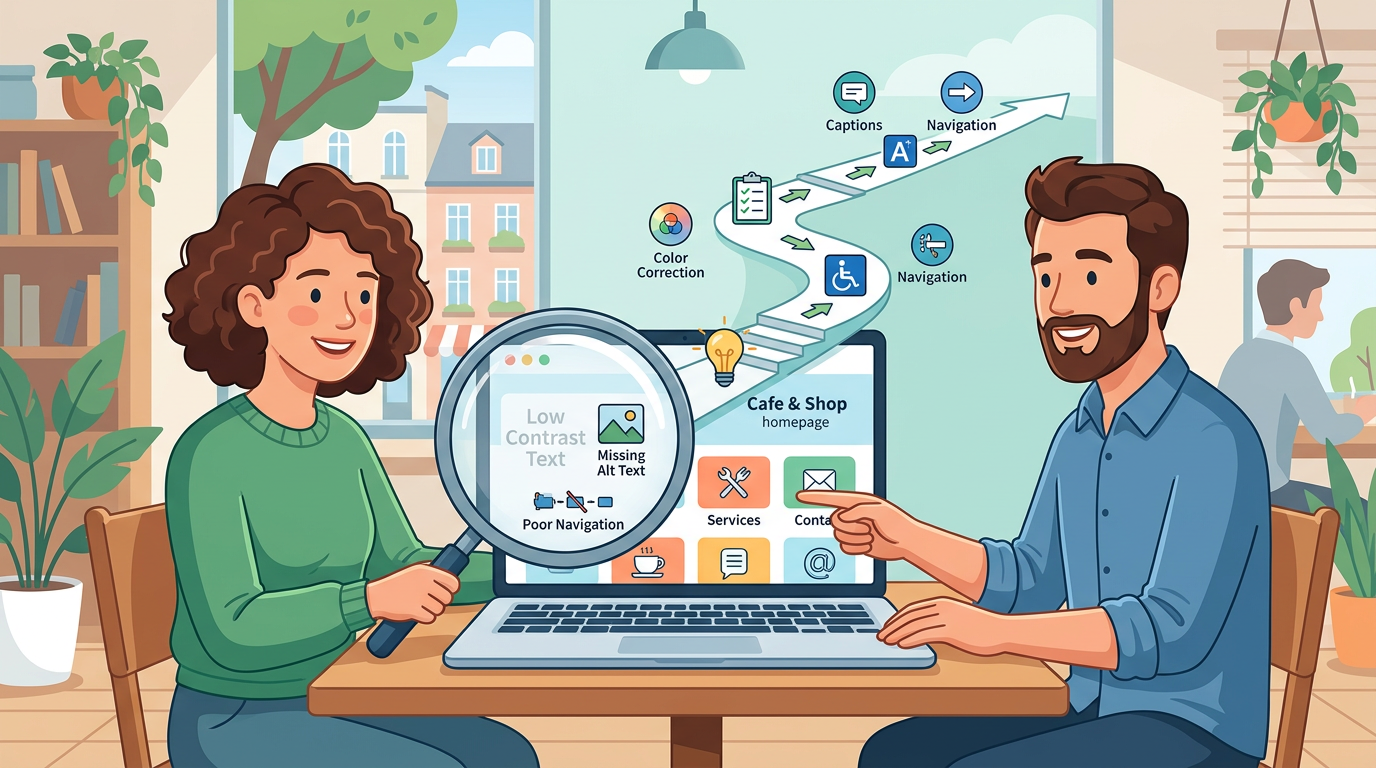
Free WCAG testing tools for small business can help you find common accessibility issues on your website without paying for a full audit. Use them as a starting point: automated scans can flag potential problems, but they cannot confirm that your site is accessible or legally compliant.
Key takeaways
- Start with a free checker such as WAVE, then try a browser-based tool or developer audit if you need more detail.
- Most tools check one page or a limited set of pages; a single scan does not cover every journey on your site.
- Review each finding and test key tasks manually, including navigation, forms and checkout.
- The European Accessibility Act (EAA) applies to specified products and services, not automatically to every business website.
- Prioritise fixes that block people from using important content or completing essential tasks.
Free WCAG testing tools for small business: what they can check
A WCAG testing tool looks for potential barriers to using a website, based on accessibility rules and common patterns. Depending on the tool, it may identify issues such as missing image descriptions, low colour contrast or form fields without clear labels. It can help you spot where to investigate, but a result needs context before you decide what to change.
A useful first stop is WAVE, which offers a free online checker and browser extensions. Its page-level visual feedback can make it easier to see where a checker has found a potential issue. Browser extensions are handy when you need to inspect a page you can access in your browser, rather than only entering a public URL.
Other familiar options include axe DevTools and Lighthouse. They are useful when you want to examine a page during development or add checks to a repeatable testing process. The right choice depends on who will interpret the report: a business owner may prefer a visual overview, while a developer may want findings in a workflow they already use.
No checker catches everything. The W3C explains that accessibility evaluation tools cannot assess all aspects automatically, and that human judgement is needed. Tools can also produce inaccurate or misleading results. Treat each finding as a prompt to inspect the page, not as a final verdict. See the W3C guidance on selecting evaluation tools for more on what automated evaluation can and cannot do.
How to choose between WAVE, axe and Lighthouse
Choose based on the pages you need to test, your technical comfort and what you plan to do with the results. You do not have to settle on one tool: a simple scan can help you find obvious issues, and a second method can help you investigate them.
| Tool or approach | Useful for | Keep in mind |
|---|---|---|
| WAVE online checker | A quick visual check of a public page | It does not establish that the whole site is accessible |
| WAVE browser extension | Inspecting a page while viewing it in a browser | You still need to interpret and verify flagged items |
| axe DevTools | Developers who want accessibility findings while working on a page | Results need technical review and manual testing too |
| Lighthouse | A convenient audit within a developer testing workflow | An audit result is not a site-wide accessibility assessment |
| Manual checks | Finding barriers in real tasks and interactions | They take time and should be combined with automated checks |
For other options, the W3C tool directory lets you filter tools by features such as price, standards, evaluation scope and support for automated or manual testing. Check the scope before relying on a result: W3C notes that some tools assess one page, while others can evaluate groups of pages or whole sites.
If you are not technical, begin with an online checker and ask your developer to explain any findings you cannot interpret. If you manage a site with logins, booking steps or a shop, add checks for those important journeys. A scan of your homepage will not tell you whether a customer can complete a purchase or submit a form.
How to run a useful first accessibility scan
A short, repeatable process makes a free checker more useful than an occasional scan with no follow-up.
1. Pick representative pages
List the pages that matter most to visitors. Include your homepage, a service or product page, a contact form, and any booking, account or checkout steps that are important to your business. Add pages with distinctive layouts or interactive features, such as menus, pop-ups or tabs.
2. Run a scan and save the results
Enter a public page URL into an online checker or use a browser extension while viewing the page. Save the report or note the page, the issue, where it appears and the date. If a tool offers a score, do not treat that number as a measure of legal compliance or as a complete picture of usability.
3. Check the finding yourself
Open the flagged page and inspect the relevant element. For example, a checker may flag an image as missing alternative text. Ask whether the image communicates useful information. If it does, it may need a concise text alternative; if it is purely decorative, adding a description may create unnecessary noise for screen-reader users.
4. Test an important task from start to finish
Use your site as a visitor would. Try to find a service, open the main menu, complete a form or move through checkout. Repeat the task using only a keyboard, without a mouse. Notice whether you can see which item has keyboard focus and whether you can reach and operate the controls.
5. Fix, then test again
Record who will handle each issue: you, your content editor, your designer or your developer. Once it is fixed, rerun the relevant check and repeat the user task. Keep a simple log so you can see what changed and what still needs review.
What automated scans miss: manual checks to add
An automated tool can flag patterns in the code, but it cannot reliably judge every real-world experience. A person needs to check whether the site makes sense and whether its important functions work in different ways.
Try these practical checks alongside your scans:
- Keyboard access: Can you reach links, buttons, menus and form controls using the Tab, Shift+Tab, Enter and arrow keys where relevant? Can you tell where focus is?
- Forms: Are instructions clear? Can you identify required fields, understand an error and correct it without losing information?
- Images and media: Do meaningful images have useful text alternatives? Are captions or transcripts available where needed for video or audio?
- Zoom and layout: Increase text size or zoom in. Is important content still visible and usable without unnecessary horizontal scrolling?
- Content clarity: Are headings descriptive and in a sensible order? Do links explain where they go rather than relying on vague phrases such as “click here”?
- Real journeys: Can a visitor complete the actions that matter to your business, not just view the first page?
These checks are not a substitute for a structured accessibility evaluation, but they can expose issues that a quick scan does not. For a fuller process, see our guide to an EAA website accessibility scan and small-business EAA accessibility checklist.
How to turn a checker report into practical fixes
Reports are easier to act on when you translate each alert into a specific task. Do not hand a long list of tool output to a developer without context. A concise issue record helps the right person understand both the problem and the expected result.
For each finding, note:
- Where it appears: Page URL, section and the element involved.
- What the tool reported: Keep the original message or screenshot as a reference.
- What a visitor may experience: For example, a keyboard user may not be able to reach a menu item.
- Who should investigate: A content owner, designer or developer.
- How you will retest: Repeat the scan and, where needed, test the relevant task manually.
Some issues are straightforward content edits. You may be able to replace unclear link wording or add a meaningful image description yourself. Other findings, such as a keyboard interaction that does not work, may need a developer. If you are unsure whether an alert is a genuine barrier, ask for an explanation and test the page rather than dismissing it automatically.
If you also want to review privacy and consent alongside accessibility, KlearKomply offers a free Quick Scan to help identify website-readiness issues. For a broader review, the €29 Full Readiness Scan includes accessibility, privacy and consent, trust signals and quality, with developer fix briefs. These scans can help organise next steps; they are not a specialist accessibility audit or a compliance certificate.
Does the European Accessibility Act apply to your website?
The EAA has applied in the EU since 28 June 2025. It covers specified products and services, so it is not a blanket rule that automatically applies to every business website. Whether your business is affected depends on what you provide and the rules relevant to your situation. The European Commission’s EAA overview explains the Act’s scope.
The Council describes an exemption for service-providing microenterprises with fewer than 10 employees and annual turnover below €2 million. Treat this as general EU-level guidance, not an individual legal determination: check the specific national rules and whether your business and services qualify. The Council’s accessibility overview provides further context.
A free scan can help you spot potential accessibility barriers, whether or not you are certain the EAA applies to you. It cannot decide your legal obligations or establish that your site meets a required standard. If the rules may apply, review your circumstances carefully and seek qualified advice where needed.
Common mistakes when using free WCAG checkers
Scanning only the homepage. Important barriers may be on forms, product pages or checkout. Test representative pages and key user journeys.
Treating a clean report as proof. A tool only reports what it can detect within its scope. Combine scans with manual checks and consider the site as a whole. W3C’s WCAG-EM evaluation methodology explains why a conformance claim cannot be based only on a selected subset of pages and functionality.
Fixing the score instead of the experience. Prioritise barriers that prevent people from accessing information or completing a task. A number alone does not show how serious an issue is for visitors.
Assuming every alert is an error. Check the page and the context before changing it. A finding can require human judgement, and some tools can produce misleading results.
Scanning once and moving on. Updates to content, templates and third-party features can introduce new issues. Add accessibility checks to your routine when you publish a redesign or change a key journey.
The practical starting point is simple: scan a few important pages, verify the results, test real tasks and assign fixes. Keep repeating that process as your site changes. If you need help organising accessibility alongside privacy and consent checks, try KlearKomply’s free Quick Scan or consider the €29 Full Readiness Scan at klearkomply.com.
This video is hosted by YouTube. Loading it shares your IP address with Google and may set cookies.
Frequently asked questions
Which free WCAG checker is easiest for a nontechnical small-business owner?
WAVE’s free online checker is a practical place to start: enter a public page URL and review its visual findings. You will still need to inspect each alert, since a checker cannot decide every issue automatically. If you are unsure what a finding means, ask your web developer to explain it and help verify a fix.
Can I scan my whole website for free, or only one page at a time?
It depends on the tool. Some check one page, while others can evaluate groups of pages or sites. Check the tool’s scope before you start, and do not assume one homepage scan covers your whole website. Include important page types and visitor journeys such as forms, bookings or checkout.
Can an automated accessibility checker confirm WCAG or EAA compliance?
No. Automated tools can identify potential issues, but they cannot assess every accessibility requirement or replace human judgement. A scan is useful evidence for prioritising investigation and fixes, not a certificate or legal verdict. EAA obligations also depend on whether the Act applies to your particular products or services.
What should I test manually after running an accessibility scan?
Try key tasks using only a keyboard, including opening menus, completing forms and moving through checkout. Check whether focus is visible, instructions and errors are understandable, and content remains usable when enlarged. Also review images, headings and link wording. Choose tests that reflect what visitors actually need to do on your site.
What should I do when a checker finds an issue?
Record the page, the element and the tool’s message, then check what a visitor may experience. Assign the fix to the right person—such as a content editor or developer—and retest the page after changes. Do not automatically dismiss an alert or assume every finding requires the same fix; verify it in context.
This article is general information, not legal advice.
Keep reading
EAA Accessibility Checklist for a Small Business Website
Use this eaa accessibility checklist for a small business website to check scope, test key journeys, prioritise fixes and plan practical retesting.
Read article
EAA Website Accessibility Scan: What It Checks and What to Do Next
An EAA website accessibility scan can reveal common barriers and guide your next steps. Learn what it checks, what it misses, and how to act.
Read article
How to Choose a Website Compliance Checker for GDPR and Accessibility
Use a website compliance checker for GDPR and accessibility to find practical issues, understand scan limits, and plan clear next steps for your EU website.
Read article